Showing posts with label COMMAND PROMPT TIPS. Show all posts

Monday, February 20, 2012

TOTAL SOLUTION FOR PDF DOCUMENTS ONLINE


  If you feeling difficulty with working PDF documents... Below mentioned sites will useful to those people which they want to do modifications with their PDF document.

1.Online PDF compressor, converter, Merger, Resizer
     This is power online allows your to convert,merge,Resize any PDF Document..

2.Online PDF Editor
    You can Edit PDF Documents online by accessing below link..

3.PDF Software Free Download
   Free software for PDF Merge,convert,Resize

Thursday, December 2, 2010

Display a message on startup in Windows XP

Display a message on startup in Windows XP
   This tutorial will show you how to display a message on your computer before Windows XP loads. Very useful when the owner of the computer wants to define some rules for using the system that an user must read before.


1. Go to Start->Run
2. On the Run window type regedit and press Enter.
3. Navigate to the key HKEY_LOCAL_MACHINE\SOFTWARE\Microsoft\Windows NT\CurrentVersion\Winlogon.
4. Modify the key legalnoticecaption and write the name of the window you want to appear.
5. Modify the key legalnoticetext with what you want the window to say.

Restart your computer.

Now when your computer starts a window with the name and text defined by you will appear on the screen before Windows XP is loaded.

Tuesday, November 9, 2010

How To Copy Texts From Command Prompt

HOW TO COPY TEXTS FROM COMMAND PROMPT

   To get rid of this, have a very simple trick you can use to copy texts from command prompt.
Load the command prompt window and load any directory by typing DIR command.
   You may want to copy some portion or some text from the command prompt window. To select text, right click on command prompt window and choose Mark menu.
                                          

How To Edit PDF Files

TOP 3 FREE PDF EDITOR SOFTWARES   
   You’re probably sometimes downloaded a pdf document that you need to edit, it can be tricky because PDF files are “read only” by default. There are ways by which you can edit a PDF document for free .To help you out, I decided to provide you the list of top 3 free PDF editing software. Let’s begin with it.

1) Nitro PDF Professional

Nitro PDF Professional is PDF editor e that allows you to create, convert, edit, combine, secure, annotate, form-fill, and save 100% industry-standard PDF files… It worth to have ! Below you can download Nitro PDF Professional.
Features
-Create PDF
- Edit PDF
- Convert PDF
- Review & annotate PDF
- PDF forms
- Secure PDF
- Assemble & combine PDF

Tuesday, July 20, 2010

ENABLE AUTO REFRESH

ENABLE AUTO REFRESH IN SYSTEM
    Normally Refresh option helps us to refresh the RAM progress... That why it is helpful to Run system without any problem... Generally we can refresh the system when our have been done.. There are two options to refresh our system 1.Right click and Refresh.. 2.Press F5 key to refresh...


    In some times we forget to refresh the system.. At that time can be possible to been system hanged... To Overcome this problem.. Just enable Automatic system Refresh..This will help to refresh your system Automatically... To enable this Follow the steps below..


1. Go to Start > Run (or) Windows Logo + R


2. (Type)-- regedit


3. Go to:- HKEY_LOCAL_MACHINE/system/currentcontrolSet/Control/update/{Right side)     updatemode


4. Double Click on Updatemode


5. Change DWORD value 1 to 5..


It's done close the regestry....


To Normalize this process... just follow the above process and change DWORD value 5 to 1..

Friday, July 2, 2010

KNOW SYSTEM OS INSTALLATION DATE & RUN TIME

HOW TO KNOW YOUR SYSTEM OS INSTALLATION DATE AND RUN TIME
    Do you know when your system os installed date and from how much time your system was running... Since it turned On....  You know this details with inbuilt feture in Windows XP...

1. Goto START > RUN > CMD > SYSTEMINFO
    
Then you will see the result on your screen like the above image... 


Monday, June 28, 2010

WHAT IS SAFE MODE

WHAT IS SAFE MODE.. HOW DOES IT WORKS ON SYSYTEM
safe_mode_01_01.jpg (590×444)
      When dealing with a computer issue, you will often hear your tech have you restart in “Safe Mode“.  You may be wondering what “Safe Mode” is, and what it does. Safe Mode is the troubleshooting option for your Operation System (OS) which starts your computer with the most basic drivers, and services.
    Anti Virus software, print drivers, and other 3rd party process’ are disabled, so you can get into the system on a clean slate, fix the issues, and reboot into normal mode.
     Safe Mode may be required for Malware removal at times, since it allows the computer to boot, and prevent the virus from loading in the background.
      You may be getting the “blue screen of death” (BSOD) when booting into Windows 7, and are wondering if it is an issue with your Windows installation, or is it a problem with a piece of software, or device you are using.  If the problem does not appear when you start in safe mode, you can cancel out the default settings, and basic device drivers as possible causes of the issue.

Tuesday, June 22, 2010

OPEN FOLDER IN COMMAD PROMPT

OPEN FOLDER IN COMMAD PROMPT
     
In Windows XP we can also open a folder with commad prompt...Just follow the seps below to avail this

Open Notepad by going to Run Command (Windows + R OR Start> Run), type “notepad”(without quotes).
Copy and paste the following code:
REGEDIT4
[HKEY_CLASSES_ROOT\Directory\shell\cmd]
@="Open Command from here"
[HKEY_CLASSES_ROOT\Directory\shell\cmd\command]
@="cmd /k \"cd %L\""
Now save it on desktop as “command.reg” (with quotes (see the image below).

Now you’ll have following shortcut icon.

Sunday, June 13, 2010

ALTERNATE FOR COMMAND PROMPT

BEST ALTERNATIVE IF THE COMMAND PROMPT IS BLOCKED
     In some times due to virus or in office the administrator will block the command prompt for the users...At that situation we try to run command prompt the error should be this "The command prompt has been disabled by your administrator"


HOW TO DISABLE COMMAND PROMPT FROM COMPUTER    
You can also disable your system command prompt..  Click Here  to read the post how to disable the command prompt from a computer..


HOW TO RECOVER COMMAND PROMPT    
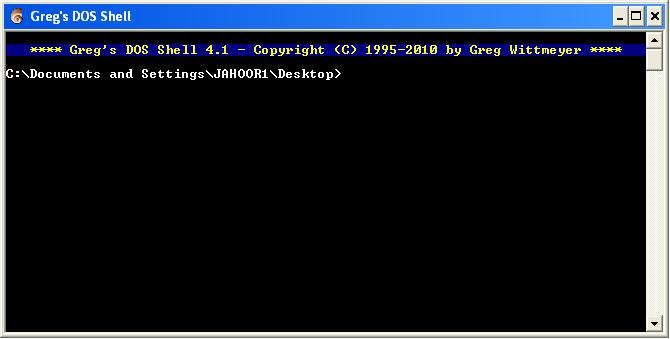
Ok now we will discuss about how to recover  the command prompt.. here is a software is called GREG'S DOS SHELL

TO DOWNLOAD THIS SOFTWARE :  CLICK HERE