Showing posts with label KEY SHORTCUTS. Show all posts

Saturday, April 16, 2011

FREE FONTS DOWNLOAD WEBSITES


FREE FONTS DOWNLOAD WEBSITES

   If you were going to try the installation of latest version of fonts...Then browse the below sites you can get thousands of fonts for free...

1. Dafont

   download fonts for designing work in photosho, and for preparing slideshows..Dafo0nt contains more that 11,0000 free fonts it has got a wider variety of fonts like Fancy, Foreign Look, Techno, Bitmap, Gothic, Basic, Script, Dingbats and Holiday fonts,

  Currently there are 13.098 free fonts on Bstract fonts. And about 1 million unique downloads every month. You can easily view the fonts in many ways like latest, by category, by designer, by recent popularity, popularity climbers and sliders, similarity, best and worst rated, and more.
 Each of the fonts has a customizable string preview, character map, member comments, similar fonts as well as a font info tab with all kinds of helpful information about the font.
Urban fonts got amazing collection of free fonts and free dingbats. It has got more than 8,00 freeware fonts to download and install it.
 
Font space contains 13,000+ fonts that have been shared by designers around the world. You can find wider range of cool fonts in font space.

5. Fawnt

Fawnt is a resource for designers, developers, and anyone that loves free fonts. Fawnt lists beautiful fonts in nice speech bubbles coupled with a scrollable interface to make browing easy Fownt got more than 10,000 free fonts.

How to Install a font?

Unzip the files you have downloaded,
Windows 7/Vista: Right-click on the font files and click “Install”
Windows XP: Put the font files into C:\Windows\Fonts
Mac OS X: Double-click the font file  and click “Install font” button

Monday, February 21, 2011

GMAIL NOW SUPPORTS 12 NEW FILE FORMATS VIA GOOGLE DOCS


Gmail Now Supports 12 New File Format Previews Via Google Docs Viewer Including Microsoft Excel, Adobe Illustrator, Adobe Photoshop And Autodesk AutoCad
   Thanks to Google Docs Viewer users can now view 12 new file-formats apart from existing PDF, Microsoft Word documents and PowerPoint presentations - the new supported formats are Microsoft Excel (.XLS and .XLSX, Microsoft PowerPoint 2007 / 2010 (.PPTX), Apple Pages (.PAGES), Adobe Illustrator (.AI), Adobe Photoshop (.PSD), Autodesk AutoCad (.DXF), Scalable Vector Graphics (.SVG), PostScript (.EPS, .PS), TrueType (.TTF)and XML Paper Specification (.XPS).
Google Docs Viewer
Users will be able to view these file-types using the “View” link in their Gmail attachments, users can also use the Google Docs Viewer service directly to make use of the viewer separately.

Wednesday, December 22, 2010

How To Send Anonymous Email

TOP 6 SITES TO SEND ANONYMOUS EMAILS
   There are plenty of free web service that allow you to send anonymous email . In this post provide you the list of top 6 anonymous email service.Let’s begin with it.

1)sendanonymousemail.net

This service is perfect for the following: catch a cheating spouse husband or wife., find out if your friend is are real friend ,give warnings to people, inform the police about illegal activities, inform the tax office about tax cheaters, confess your love to somebody, play an email joke with your friends, when your own email service doesn’t work, f your private email is banned by the recipient, report fraud to your boss or institution and many more reasons…

2)anonymouse.org

With AnonEmail it is possible to send e-mails without revealing your e-mail address or
any information about your identity. Therefore you can communicate more freely
and you do not have to worry that it might cause consequences for you.
This service allows you to send e-mails without revealing any personal information.
Protect your privacy, protect your data, protect it for free.

Thursday, December 2, 2010

Display a message on startup in Windows XP

Display a message on startup in Windows XP
   This tutorial will show you how to display a message on your computer before Windows XP loads. Very useful when the owner of the computer wants to define some rules for using the system that an user must read before.


1. Go to Start->Run
2. On the Run window type regedit and press Enter.
3. Navigate to the key HKEY_LOCAL_MACHINE\SOFTWARE\Microsoft\Windows NT\CurrentVersion\Winlogon.
4. Modify the key legalnoticecaption and write the name of the window you want to appear.
5. Modify the key legalnoticetext with what you want the window to say.

Restart your computer.

Now when your computer starts a window with the name and text defined by you will appear on the screen before Windows XP is loaded.

Friday, November 19, 2010

Top 5 HTML Form Generators

Top 5 HTML Form Generators
   HTML codes are full of complicating alphabets and number; hence people do not know much about it do not like to mess up with it. Even professionals end up spending a lot of time on it. An easy to create complex html forms is to make use of html form generator. If you search for ‘free html form generator’ on the internet, you will come across plenty of sites that will allow you to create professional html forms within seconds.

Here are top 5 html form generators that you can make use of to create complex html forms effortlessly:
1. Zoho

Zoho’s HTML form builder has a very intuitive user interface that allows you to build HMTL forms for collecting information from others. Zoho provides you with plenty of important features like analysis of data, embedding of HTML forms in blogs and websites, email notifications and many more. It lets you collaborate with others for collecting and analyzing the data.
PHP form brings the most simplest of all interface for creating HTML forms. The homepage consists of 25 different colored sample forms. All you need to do is click on the color that you like and hit the Next button. On the next page, you are required to choose the design of your form. This page allows you to add various kinds of fields for names, address, drop down menu, paragraph, etc. Once done, you can save the file and then hit Next to download it on your computer.
Wufoo proudly boosts about itself as easy, fast, fun secure and portable platform for creating html forms that can be easily integrated in your website. With Wufoo’s html form building plans that range free to $199.95 per month, you will be able to create professional html forms, web surveys, etc for your site. This cool web-based app has got an extensive FAQs page that will provide you answers to all your queries related to HTML forms.
It is a simple website that tells you how to create HTML forms in four easy steps. First, you are required to download the HTML form generator from the website and then unzip the downloaded file and then you need to upload it on a folder on the server of your website. Through your browser, you can now access the index.php file and start using it. On the very home page of the site, you can see screenshot as to how you can create HTML forms through BigProf.
FormStack allows you to collect and manage in just three simple steps. The first lets you build a form by adding items through drag and drop method. The created form can be embedded on your site or you can even link to it. Lastly, you can use it collect, export, share data and create reports.
SOURCE: PC HACKS

Wednesday, November 17, 2010

A Portable Freeware Desktop Calculator

SpeedCrunch – A Portable Freeware Desktop Calculator
   Are you looking for a portable freeware desktop calculator? Then try outSpeedcrunch.With Speedcrunch you can perform all complex mathematical calculations.It’s a fast, high precision and powerful desktop calculator.It’s an extremely fast and lightweight calculator that supports extended expressions.This Portable calculator is available for Linux,Windows and Mac Os.

Features of Speedcrunch

1.At your fingertip: Just type the expression that you want to calculate and press Enter. You can see clearly what you typed along with the result in the scrollable display.

2. Unlimited variables:Advanced calculation sometimes needs memory feature. SpeedCrunch allows variables to hold calculation result.
3. Syntax highlighting: You can easily distinguish numbers from variables by giving colors to expression according to the syntax.
4. Functions, with automatic completion: Get auto-completion expressions as you type a letter.
5. Smart correction: SpeedCrunch can understand an incomplete expression.
6. Keyboard-friendly: It has got Keyboard Shortcut to speed up your task.

Download:  Speedcrunch

Tuesday, November 9, 2010

How To Copy Texts From Command Prompt

HOW TO COPY TEXTS FROM COMMAND PROMPT

   To get rid of this, have a very simple trick you can use to copy texts from command prompt.
Load the command prompt window and load any directory by typing DIR command.
   You may want to copy some portion or some text from the command prompt window. To select text, right click on command prompt window and choose Mark menu.
                                          

How To Edit PDF Files

TOP 3 FREE PDF EDITOR SOFTWARES   
   You’re probably sometimes downloaded a pdf document that you need to edit, it can be tricky because PDF files are “read only” by default. There are ways by which you can edit a PDF document for free .To help you out, I decided to provide you the list of top 3 free PDF editing software. Let’s begin with it.

1) Nitro PDF Professional

Nitro PDF Professional is PDF editor e that allows you to create, convert, edit, combine, secure, annotate, form-fill, and save 100% industry-standard PDF files… It worth to have ! Below you can download Nitro PDF Professional.
Features
-Create PDF
- Edit PDF
- Convert PDF
- Review & annotate PDF
- PDF forms
- Secure PDF
- Assemble & combine PDF

Friday, October 29, 2010

Free Typing Software

TOP 10 FREE TYPING SOFTWARES

   Who might not want to have speedy typing in typical QWERTY keyboard? You might search for good typing tutor software in internet. The consequence is you end up with purchasing some typing software which is not worth a buck; because there are large list of free typing software available to help you increase your typing speed. But sometimes you may also get confused which software will give better learning skills to you.

There are large list of web software and Operating system’s software available to gain your typing speed. In this article, I would like to list you those 10 best and popular typing tutor software which are actually for free.
1. GileTech Typing Tutor
Test your typing speed with this free typing test software. – How fast can you type ? – How many words per minute ( wpm ) can you make ? – Is your typing accuracy good enough ? – Improve your typing skills with this free typing tutor.
2. Stamina
Amusing, yet multi-functional touch-typing tutor with support for several layouts, like QWERTY or Dvorak. After having gone through the fire, water and the course, you will be able to swiftly type away long e-mails (spam), efficiently misbehave in chat rooms, ICQ, and so on without ever looking at the keyboard.
Only in Stamina Typing Tutor besides the traditional finger positioning on the keyboard are you offered an alternative method (to reduce hand stress)!

3. Key Blaze Typing Tutor

The software allows you to start with basic lessons such as Home Keys for index, middle and pinky fingers and practice lessons including poetry, prose and drills. KeyBlaze also features a typing test where the duration can be set to 1, 2, 5 or 10 minutes

Wednesday, August 4, 2010

BACK UP AND RESTORE REGISTRY

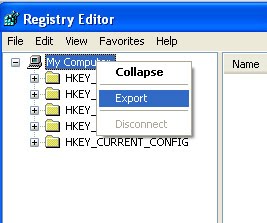
BACK UP AND RESTORE REGISTRY CONFIGUARATIONS IN WINDOWS XP
    I hope this tip is very useful for those people who change there registry configuaraions regularly..With any idea of registry may effect your system so do the following steps to back up your Registry...

    Just open run and type regedit and select "my computer" in registry editor and in file menu select option "export" now it will take about 2 to 5 minutes to create a backup for your windows registry.

    Now make any change in windows and after that simple double click on the backup file where you have been stored it will restore all the option back to the orignal values.

CREATE A DRIVE MENU FOR MY COMPUTER

CREATE A DRIVE MENU FOR MY COMPUTER IN START MENU BUTTON
    You can also create a drive menu for my computer for start menu in windows XP.. It can be shown on below.
With the help of this tip can access My computer drive right from you start menu...


1. Right click the Start button, and select Properties.
2. Click Customize, which is adjacent to the Start Menu radio button, and select Advanced.
3. Scroll through the Start Menu Items list box until you see My Computer.
    4. Select Display As A Menu, and click OK twice.Now, when you select My Computer from the Start menu, you'll see a menu of individual drives. To access the contents of that drive, just select the drive letter from the menu.

WINDOWS MEDIA PLAYER TIPS

WINDOWS MEDIA PLAYER TIPS AND SHORTCUTS
CLEAR RECENT FILES


  You can also clear recent file in Windows Media Player...
1. Start the Windows Registry Editor, regedit.exe, by typing regedit in the Windows Run Command Line.
2. Go to HKEY_CURRENT_USER\Software\Microsoft\MediaPlayer\Player\RecentFileList.
3. Delete the RecentFileList subkey.
4. If you've also streamed content from the Internet, you can delete the RecentURLList subkey.
5. Exit the Registry Editor.
6. Restart the computer.

To keep certain files in the list, don't delete the entire key. Deleting individual entries within the key will get rid of the files that you no longer want in the Recent File List.


SHORTCUT KEYS FOR WINDOWS MEDIA PLAYER
1. Video Playback
ALT+1 Adjust zoom to 50 percent
ALT+2 Adjust zoom to 100 percent
ALT+3 Adjust zoom to 200 percent
ALT+ENTER Display the video in full mode


2. Accessing the menus
ALT+F Go to media player File Menu
ALT+T Go to media player Tools Menu
ALT+V Go to media player View Menu
ALT+P Go to media player Play Menu
ALT+F4 Use to close media player


3. Switching between display mode
CTRL+1 Display media player in full mode
CTRL+2 Display media player in skin mode


4. Player controls
ENTER or SPACEBAR Use to play an item
CTRL+B Use to play the previous item in media player
CTRL+F Use to play the next item in media player
CTRL+E Use to Eject CD or DVD from CD or DVD drive
CTRL+P Use to Play or Pause the item in media player
CTRL+T Use to Repeat the items in media player
CTRL+SHIFT+B Use to Rewind a file in media player
CTRL+SHIFT+F Use to Fast Forward a file in media player
CTRL+SHIFT+S Use to play items slower than a normal speed
CTRL+SHIFT+ G Use to play items faster than a normal speed
CTRL+SHIFT+ N Use to play items at normal speed in media player
F8 Use to mute the volume in media player
F9 Use to decrease the volume in media player
F10 Use to increase the volume in media player


Friday, July 30, 2010

ANTI FREEZE TASK MANAGER WORKS WHEN SYSTEM GET HANGED

Handy Task Manager Which Works When Your Computer Gets Frozen       
      It gets really frustrating when your computer decides to froze while doing an important task, nothing works and you are not even able to launch Windows task manager to kill processes hogging system resources. Windows freeware AntiFreeze takes care of this by offering a last resource to get you rescued from a hung system, all you need to do is to press the AntiFreezehotkey and it will put to sleep all running programs except the most critical ones, giving you the opportunity to close down the programs which are causing problems via a special task-manager.


TO DOWNLOAD: CLICK HERE

Monday, July 26, 2010

POWERFUL DICTIONARY LIKES YOU

POWERFUL DICTIONARY DEFINITELY LIKES

       Here is a powerful dictionary.Hope this dictionary definitely likes you.. Because of its features..By using those features you get all information word which you want to know....
     By the above screen shot you will know all the features about this software...You can hear the sound of word how to pronounce.. Also you can see Nearest words for the existing words..Synonyms, Types, And Example also you can see within the same interface..
      Can also take help web to know about more information the word..

DOWNLOAD: CLICK HERE

Wednesday, July 21, 2010

TYPE NEW INDIAN RUPEE SYMBOL ON KEYBOARD

TYPE NEW INDIAN RUPEE SYMBOL ON KEYBOARD
Everyone Knows that the about the symbol... If you don't know about the symbol.. I will explain you.The Indian rupee will have its own symbol, a mix of the Devanagri ''Ra'' and Roman ''R'', to become the fifth currency in the world to have a distinct identity.

    After a nation wide contest organized by government of India,which received over 3,000 designs, finally D Uday Kumar, an iit post graduate’s design was selected. He’ll receive a reward of 2.5 lakhs.
    Sad thing is that it doesn't have any key on the keyboard unlike the dollar, to type it!.. We have to wait for 4 to 6 months to have short key on the latest keyboards...
rupee_keyboard1
   The developers uses the above keyboard short key to use this symbol.. After completing tips below then press the key which is shown on the above Image...    
If you want to use the Rupee symbol instantly... Then you have to follow the below tips.. then you can able to give an short key to type a rupee symbol...

 STEPS FOR RUPEE SYMBOL ON KEYBOARD

Sunday, July 4, 2010

SCHEDULE AUTOMATIC DEFRAGMENT

SCHEDULE AUTOMATIC DEFRAGMENT IN WINDOWS XP                                 
     Defragmenting your hard drive is the process of putting all the scattered pieces of files back together. Microsoft Windows XP includes a tool that will defragment your hard drive for you. To keep your system performing well, it’s a good idea to have Windows XP automatically defragment your hard drive every week.
To schedule a weekly defragmentation
1.
Click Start, and then click Control Panel.
2.
Click Performance and Maintenance.
3.
Under or pick a Control Panel icon, click Scheduled Tasks.
Performance and Maintenance window with Scheduled Tasks selected
4.
In the Scheduled Tasks window, double-click Add Scheduled Task.
Scheduled Tasks window with Add Scheduled Task selected
5.
In the Scheduled Task Wizard, click Next.

CREATE A KEYBOARD SHORTCUT

CREATE A KEYBOARD SHORTCUT TO OPEN A FOLDER IN XP
Do you have a folder that you'd like to be able to open quickly and easily whenever you want? If you create a keyboard shortcut for that folder, you can open it anytime by pressing a key combination, no matter which other programs you have open.
To create a keyboard shortcut to open a folder
1.
Click on Start, All Programs, Accessories, and then click Windows Explorer.
2.
In Windows Explorer (the program that appears when you open folders such as My Computer, My Documents, My Pictures, or My Music), right-click the folder to which you want instant access, click Send To, and then click Desktop.
Folder selected in My Documents folder, with Send To and then Desktop selected on right-click menu
3.
On your desktop, right-click the new shortcut, and then click Properties.
Shortcut selected, with Properties selected on right-click menu
4.
On the Shortcut tab, click in the Shortcut key box. Now press the letter on your keyboard that you want to use to open the folder.

INSTANTLY ACTIVE SCREEN SAVER

INSTANTLY ACTIVE SCREEN SAVER IN WINDOWS XP
To add a shortcut to your desktop that you can double-click to instantly start your screen saver
1.
Click the Start button, and then click Search.
2.
In the Search Results window, click All files and folders.
Search results window
3.
In the All or part of the file name box, type *.scr. Then, click Search.

Monday, June 28, 2010

WINDOWS 7 SHORTCUT

WINDOWS 7 OS SHORTCUT KEYS

  • Win + Spacebar - Aero desktop peek, just like that small rectangle at the right bottom corner next to the time display.
  • Win + Left Arrow - Toggle docking to half the screen starting by the left half.
  • Win + Right Arrow - Toggle docking to half the screen starting by the right half.
  • Win + Shift + Left Arrow - Move the window one monitor left in a multi-monitor display.
  • Win + Shift + Right Arrow - Move the window one monitor right in a multi-monitor display.
  • Win + Up Arrow - Maximize
  • Win + Down Arrow - Minimize
  • Win + Home - Minimize/Maximize all inactive windows.
  • Win + P - Show presentation mode projector options.
  • Win + G - Show desktop gadgets.
  • Win + Any number (1, 2, 3, .., 0) - Open the corresponding taskbar pinned program.
  • Ctrl + Click - A pinned taskbar icon to cycle through the program’s open windows.
  • Ctrl + Shift + Click - A pinned taskbar icon to run a new instance of the program as administrator.
  • Shift + Click - A pinned taskbar icon to run a new instance of the program.
  • Win + T - Focus the first taskbar entry, similar to ALT +TAB.
  • Win + Shift + T - Same as above in reverse order.
  • Win + +/Win + - - Zoom in and out of Windows.
  • Alt + P - Show/hide Preview Pane in Explorer.
  • Win + Tab - Windows Aero Task Switcher.